# Command line
> Run DearSQL from a terminal: open the app, browse in a terminal UI, give your coding agent database tools, or get SQL completion in your editor.
DearSQL is one program with several ways in:
| Command | What it does |
|---|---|
| `dearsql` | Opens the app |
| `dearsql my.db` | Opens the app with that file |
| `dearsql --tui` | Browse and query in the terminal |
| `dearsql --mcp` | Gives a coding agent your database tools |
| `dearsql query …` | The same tools as one-off commands |
| `dearsql --lsp` | SQL completion and hover in your editor |
| `dearsql --version` | Prints the version |
| `dearsql upgrade` | Installs the latest release over this one |
## Installing from a terminal
On macOS (Apple silicon) and Linux (x86_64 or ARM64), one command installs the app and the `dearsql` command, with no prompts, so a coding agent can run it too:
```bash
curl -fsSL https://dearsql.dev/install.sh | sh
```
- On macOS it puts DearSQL.app in `/Applications` (or `~/Applications` if that folder isn't writable), after checking the download is signed by DearSQL's developer, and links `~/.local/bin/dearsql` to it.
- On Linux it installs the AppImage as `~/.local/bin/dearsql`, after checking its SHA-256, and adds a desktop entry.
To update later, run `dearsql upgrade` (from 0.7.5), or this script again. If `~/.local/bin` isn't on your `PATH`, the script prints the line to add. Check the install with `dearsql --version`.
On Windows, download the installer from the [home page](https://dearsql.dev/).
## Installing the `dearsql` command from the app
If you installed the app by hand, open **Settings** (the gear in the title bar) and click **Install 'dearsql' Command** under **Command Line**.
- On macOS this links `/usr/local/bin/dearsql` to the app. If that folder needs administrator rights, macOS asks for your password once.
- On Linux it links `~/.local/bin/dearsql` to the AppImage. Make sure `~/.local/bin` is on your `PATH`.
If you move the app later, click the button again to point the command at the new location.
## Upgrading
`dearsql upgrade` checks for a newer release and, if there is one, installs it over the copy you ran it from.
- On macOS it downloads the new DearSQL.app, checks it's signed by DearSQL's developer, and replaces the app wherever it is, keeping your `dearsql` link as it is. If the app's folder isn't writable (an `/Applications` owned by an administrator), it says so and leaves the old app in place.
- On Linux it downloads the AppImage, checks its SHA-256 and replaces the one you ran.
- On Windows it downloads the installer and starts it, which shows its progress, closes the app if it is open and replaces it once `dearsql` has exited.
Quit the app before upgrading on macOS and Linux; the running copy keeps the old version until it restarts. The app also updates itself: **Settings → Check for Updates...**.
## The terminal UI
```bash
dearsql --tui # pick from your saved connections
dearsql --tui "Production" # open a saved connection by name
dearsql --tui postgres://me@localhost/shop # or a connection URL
dearsql --tui ~/data/orders.duckdb # or a SQLite, DuckDB or CSV file
```
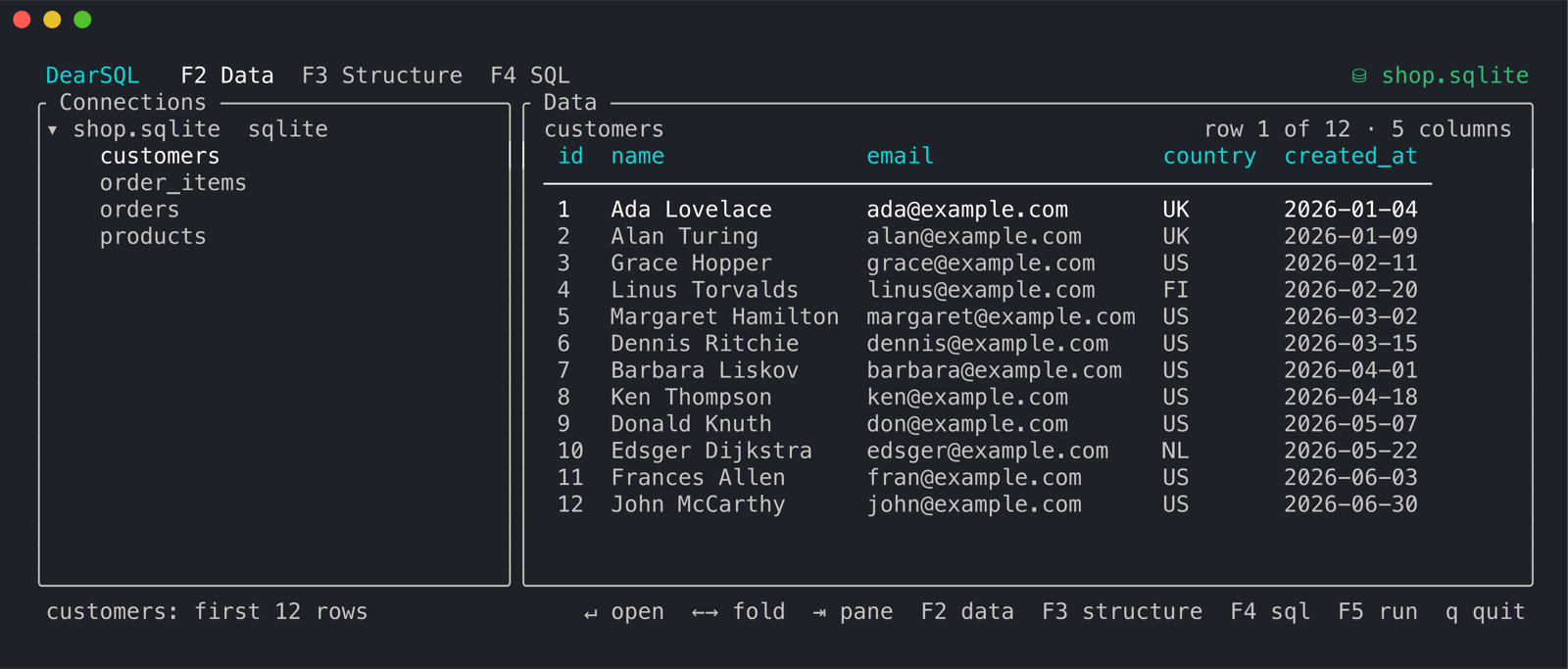 The left pane is the same tree as the app's sidebar: connections, databases, schemas, tables. Use the arrow keys to move, **→** to expand, **←** to collapse, and **Enter** to open a table.
The right pane has three tabs:
- **F2 Data** shows the table's rows. Scroll them with the arrow keys and **Page Up**/**Page Down**.
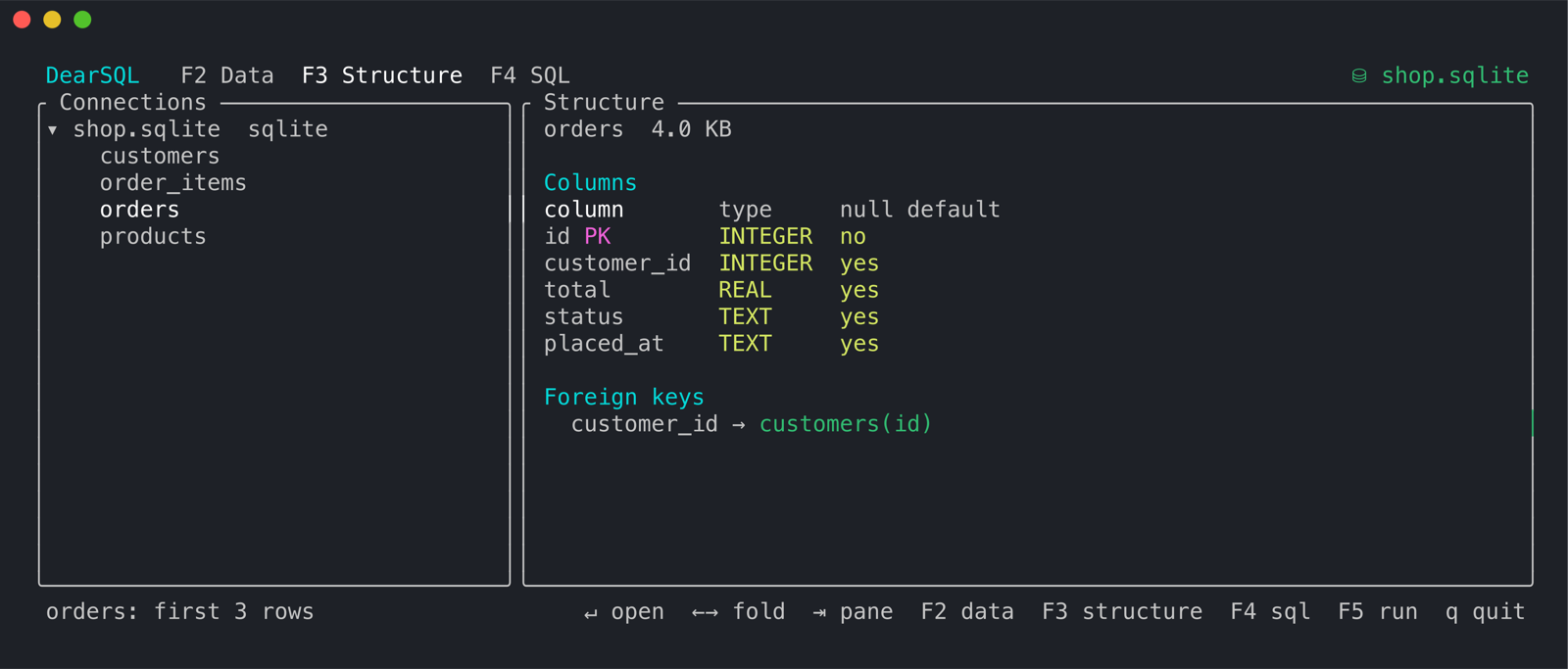
- **F3 Structure** shows columns, keys, indexes and foreign keys.
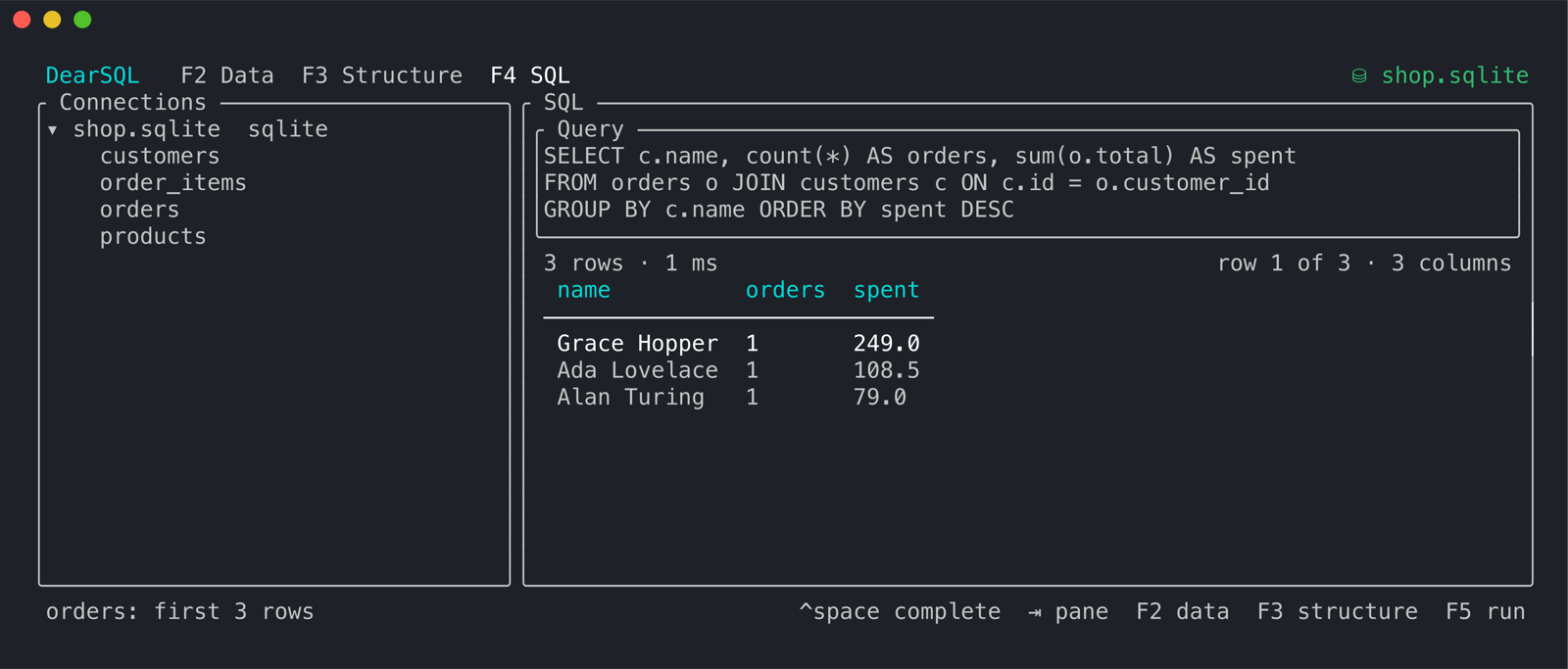
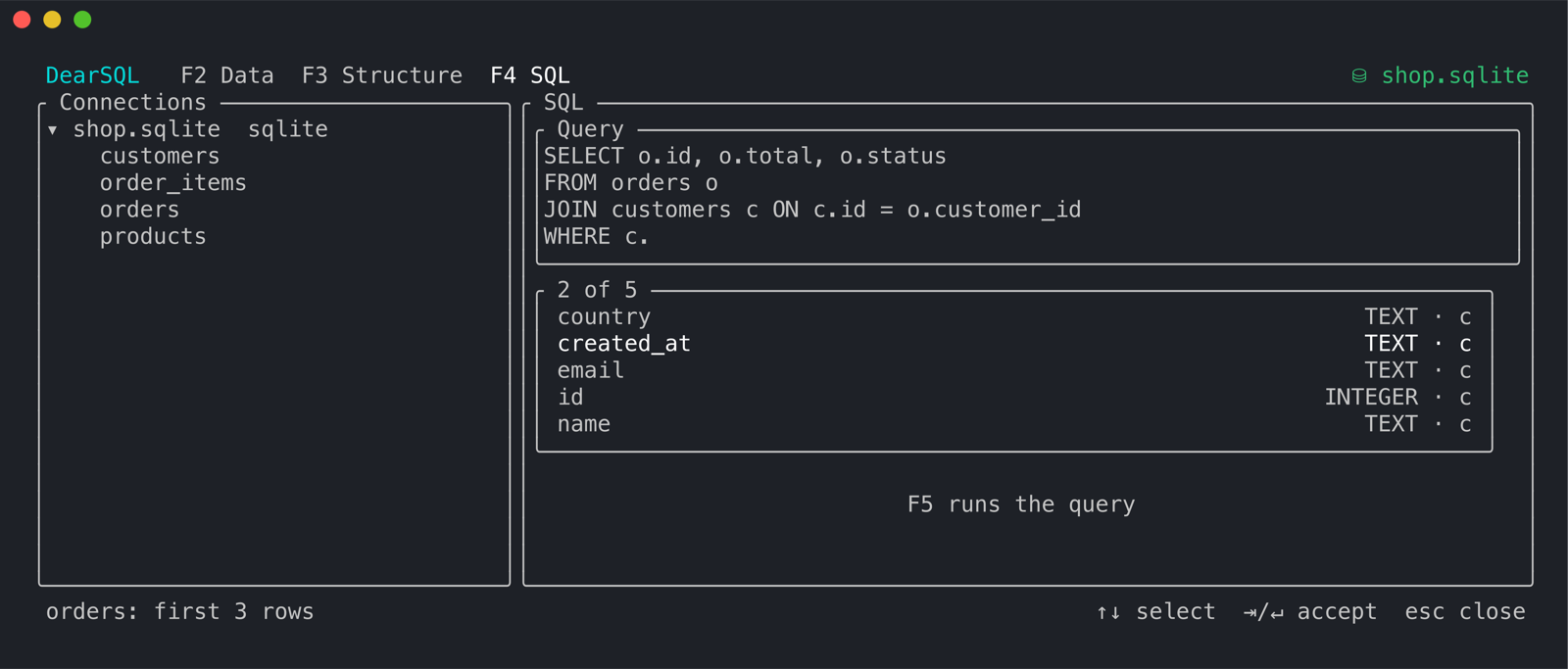
- **F4 SQL** is a query editor. **F5** runs it against the database you last opened. **Ctrl+Space** shows completions for keywords, tables and columns, the same ones the app suggests; the list also opens by itself after a `.`, so `u.` after `FROM users u` lists the columns of `users`. While the list is open, **↑**/**↓** pick an entry, **Tab** or **Enter** inserts it, and **Esc** closes it.
 **Tab** switches between the panes (when no completion list is open), and **q** quits.
Your saved connections, passwords and SSH tunnels are the app's own, so anything that connects in the app connects here too.
## Database tools for your coding agent
`dearsql --mcp` runs the same [database tools](https://dearsql.dev/docs/ai-database-tools) the assistant chat uses, for any agent that speaks [MCP](https://modelcontextprotocol.io) — Claude Code, Codex, Cursor and others:
```bash
claude mcp add dearsql -- dearsql --mcp
codex mcp add dearsql -- dearsql --mcp
```
In Claude Code, the DearSQL plugin does the registration for you and adds a skill that teaches the agent the workflow: search the schema before writing SQL, explain a slow query before suggesting an index, and leave every change to you:
```
/plugin install dearsql --marketplace dunkbing/dearsql
```
Codex reads the same skill from `~/.agents/skills`:
```bash
mkdir -p ~/.agents/skills/dearsql
curl -fsSL https://raw.githubusercontent.com/dunkbing/dearsql/main/plugins/dearsql/skills/dearsql/SKILL.md -o ~/.agents/skills/dearsql/SKILL.md
```
Or let the agent set itself up: ask it to *"read https://dearsql.dev/llms.txt, install DearSQL and register its MCP server"*. That file links every docs page as plain markdown (add `.md` to any docs URL, or fetch them all at once from `/llms-full.txt`).
The agent can then search your schema, describe tables and run read-only queries against your saved connections, opening them when it needs one. To limit it to a single database, name it after `--mcp`:
```bash
claude mcp add shop -- dearsql --mcp postgres://me@localhost/shop
```
Unlike the app, there is no approval button here: writes are rejected unless you allow them (below). Results come back a page at a time, as in the app.
### Letting the agent make changes
To let the agent run `INSERT`, `UPDATE`, `DELETE` or schema changes, add `--allow-writes`:
```bash
claude mcp add dearsql -- dearsql --mcp --allow-writes
```
This adds an `execute_sql` tool, marked as destructive. Agents such as Claude Code and Codex ask you to approve each call and show you the statement, so check it before you approve. Don't set the tool to always allowed. The agent still reads through `run_query`, which stays read-only. Without the flag, `execute_sql` doesn't exist.
## Database tools as commands
An agent that can run shell commands doesn't need MCP at all: every database tool is also a `dearsql` command, with the same results.
```bash
dearsql search -c shop.sqlite "order user"
dearsql describe -c shop.sqlite orders
dearsql query -c postgres://me@localhost/shop "SELECT status, count(*) FROM orders GROUP BY 1"
echo "SELECT * FROM orders LIMIT 5" | dearsql query -c prod
```
| Command | Tool |
|---|---|
| `dearsql connections` | `list_connections` |
| `dearsql connect ` | `connect` |
| `dearsql search ` | `search_schema` |
| `dearsql describe
` | `describe_table` |
| `dearsql tables` | `list_tables` |
| `dearsql query ` | `run_query` (read-only) |
| `dearsql explain_query ` | `explain_query` (the plan, with warnings; `--analyze true` runs a read-only query) |
| `dearsql review_indexes` | `review_indexes` (`--table` for one) |
| `dearsql explain_finding ` | `explain_finding` |
| `dearsql profile_table ` | `profile_table` (`--sample` rows) |
| `dearsql diff_schema --other-database ` | `diff_schema` (`--other-connection` for another server) |
| `dearsql exec ` | `execute_sql` |
| `dearsql export ` | `export_query` (a read-only query's rows as an Excel file; `--sheet` names the sheet, `--overwrite true` replaces a file) |
| `dearsql list_objects` | `list_objects` (S3: buckets, or one folder with `--bucket`, `--prefix`) |
| `dearsql read_object ` | `read_object` (S3: the start of a file as text) |
| `dearsql copy_object`, `delete_object`, `upload_object`, `download_object` | the same S3 writes; `copy_object --move` moves |
`dearsql connect` with a URL or a file checks the connection and saves it to the app's connection list (the current workspace), unless it is saved already. It is saved under its host and database unless you name it: `dearsql connect "postgres://…" --save-as myapp_prod`. On the free tier it stops saving at the connection limit. A URL or file passed with `-c` is only used for that command.
`-c` takes a saved connection name, a URL or a file, and `-d` picks the database; set `DEARSQL_CONNECTION` to skip `-c` on every call. SQL can also come on stdin. When a result ends with `cursor: …`, run the same command again with `--cursor` to get the next page. `dearsql tools` prints every command with its options and the guidance the MCP server gives agents, so pointing an agent at it is enough to get started. The tool names work as commands too (`dearsql run_query`).
`query` only runs read-only statements. `exec` runs changes, so leave it out of any command allowlist you give the agent and approve each call. Connections marked read-only in DearSQL refuse it.
## SQL completion in your editor
`dearsql --lsp` is a [language server](https://microsoft.github.io/language-server-protocol/) for `.sql` files. Point your editor at it and you get the same schema-aware completion as the app's [SQL editor](https://dearsql.dev/docs/sql-editor#writing) — tables, columns, aliases, CTEs — against your saved connections, plus hover: a table shows its columns, a column shows its type, whether it allows `NULL`, whether it is a primary key, and the table a foreign key points to. Tables and columns in the completion list carry the same details.
Completion pops up as you type and after a `.`, so `u.` after `FROM users u` lists the columns of `users`.
### Choosing the database
The server needs to know which database a file is written against. It takes the first of these that is set:
1. A comment on the first line of the file, which lets each file pick its own:
```sql
-- dearsql: Production/shop
select * from orders where ...
```
2. A connection picked while the server runs with the `switchConnections` or `switchDatabase` command (below).
3. A connection named on the command line: `dearsql --lsp "Production"`.
4. `initializationOptions` from the editor config: `{ "connection": "Production", "database": "shop" }`.
The comment always wins, so one file can point somewhere else than the rest of the project.
The part after the `/` is the database and can be left out. For PostgreSQL and SQL Server it can also name a schema, as in `Production/shop.sales`. A relative file path in the comment is read from the file's folder. Like `--tui`, a connection can be a saved connection's name, a connection URL, or the path of a SQLite, DuckDB or CSV file. Passwords and SSH tunnels come from the app, so anything that connects there connects here too.
The schema is read once and kept for two minutes, so a table you just created shows up after that. If the connection fails, the editor shows a warning once and completion falls back to SQL keywords. The server logs to stderr, which most editors put in their LSP log.
### Switching connections
The server answers the same `workspace/executeCommand` commands as [sqls](https://github.com/sqls-server/sqls), so editor plugins and key bindings made for it work here too:
| Command | Argument | What it does |
|---|---|---|
| `showConnections` | — | Lists your connections, one per line, with `*` after the current one |
| `switchConnections` | a connection name, URL or file, or its number from `showConnections` | Uses that connection from now on |
| `showDatabases` | — | Lists the databases on the current connection |
| `switchDatabase` | a database name (`shop`, or `shop.sales` for a schema) | Uses that database on the current connection |
| `showTables` | — | Lists the tables and views completion knows about |
A switch lasts until the server stops. It replaces the command-line connection and `initializationOptions`, but a file with a `-- dearsql:` comment still uses its own.
In Neovim 0.11, for example: `:lua vim.lsp.get_clients({ name = 'dearsql' })[1]:exec_cmd({ title = '', command = 'switchConnections', arguments = { 'Staging' } })`.
### Coming from sqls or sql-language-server
There is no separate config file: connections are the ones saved in the app, with their passwords and SSH tunnels.
- sqls `config.yml` `connections`: save each one in the app (or pass a URL), then use `connection` in `initializationOptions` or the command line. The first entry being the default becomes `dearsql --lsp ""`.
- sql-language-server `.sqllsrc.json` (a project's `connection`): use a `-- dearsql:` comment in the files instead, or `initializationOptions` in the project's editor config. Its `switchDataBaseConnection` command is `switchConnections` here.
### Neovim (0.11+)
```lua
vim.lsp.config('dearsql', {
cmd = { 'dearsql', '--lsp' },
filetypes = { 'sql' },
init_options = { connection = 'Production', database = 'shop' },
})
vim.lsp.enable('dearsql')
```
Neovim does not show completion as you type on its own; use a completion plugin, or turn on the built-in one when the server attaches:
```lua
vim.api.nvim_create_autocmd('LspAttach', {
callback = function(args)
vim.lsp.completion.enable(true, args.data.client_id, args.buf, { autotrigger = true })
end,
})
```
**K** shows the hover.
### Helix
In `~/.config/helix/languages.toml`:
```toml
[language-server.dearsql]
command = "dearsql"
args = ["--lsp"]
config = { connection = "Production", database = "shop" }
[[language]]
name = "sql"
language-servers = ["dearsql"]
```
Helix sends `config` as the `initializationOptions`.
### VS Code
VS Code needs an extension to run a language server it does not know. With [Generic LSP Client](https://github.com/llllvvuu/vscode-glspc) installed, add to `settings.json`:
```json
{
"glspc.serverCommand": "dearsql",
"glspc.serverCommandArguments": ["--lsp"],
"glspc.languageId": "sql",
"glspc.initializationOptions": { "connection": "Production", "database": "shop" }
}
```
### Emacs (eglot)
```elisp
(with-eval-after-load 'eglot
(add-to-list 'eglot-server-programs
'(sql-mode . ("dearsql" "--lsp"
:initializationOptions (:connection "Production" :database "shop")))))
```
Then **M-x eglot** in a SQL buffer, or add `eglot-ensure` to `sql-mode-hook`.
### Zed
Zed only starts language servers that an extension registers, so `dearsql --lsp` cannot be added from `settings.json` alone yet.